
Customize SnapKit
You can change the capture shortcut, the interface language and colors, and how SnapKit behaves when you close it or start Windows. All of these are in Preferences, and each...
You can change the capture shortcut, the interface language and colors, and how SnapKit behaves when you close it or start Windows. All of these are in Preferences, and each change applies right away.
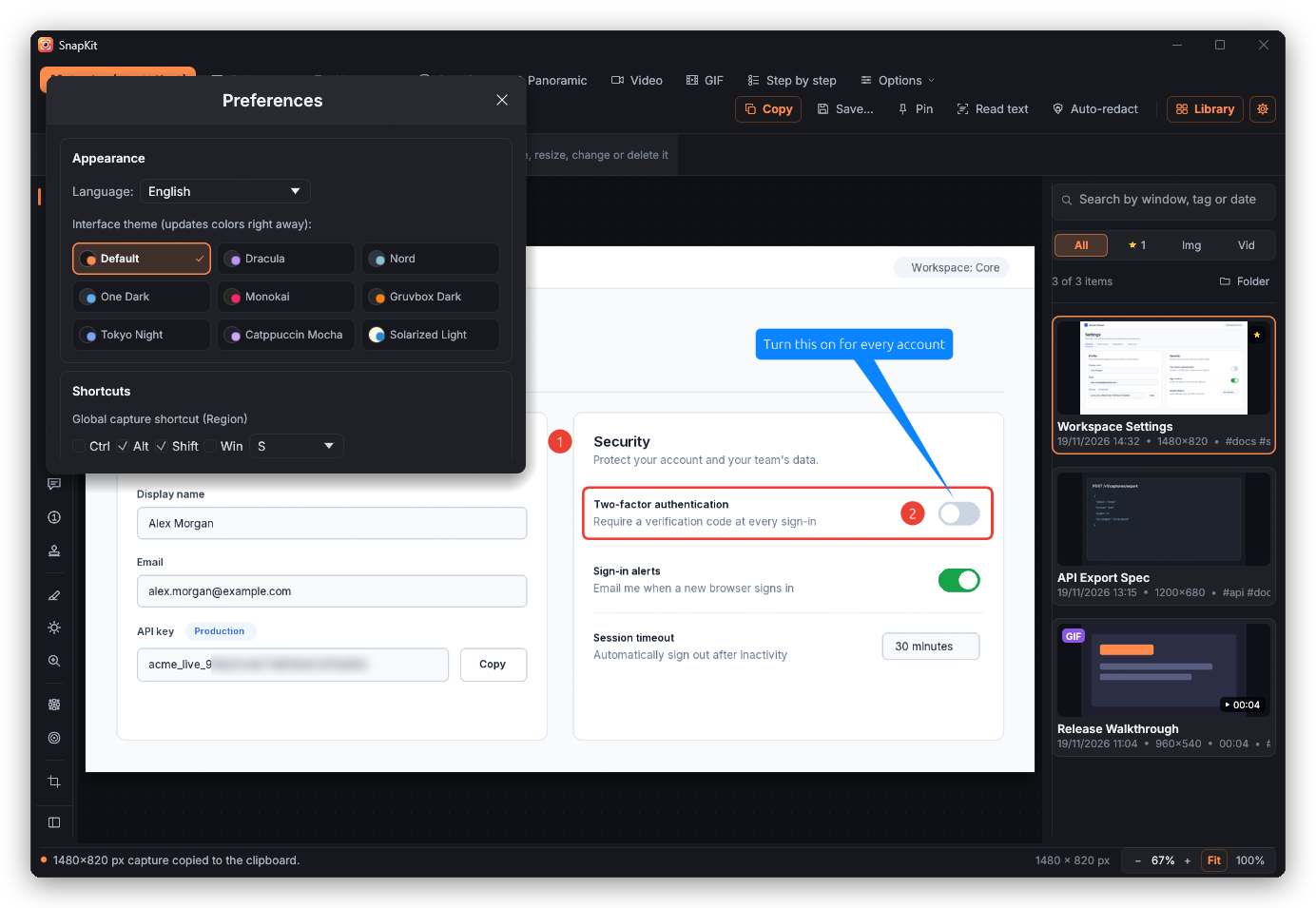
To open Preferences, select Preferences at the right end of the top bar.
Change the capture shortcut
The default shortcut for a region capture is Alt+Shift+S. It works from any app.
- Under Global capture shortcut, select the modifier keys you want: Ctrl, Alt, Shift or Win.
- In the key list, select a letter, a digit, a function key (F1–F12) or PrintScreen.
- Select Apply shortcut.
The status bar shows the new shortcut. If another app already uses that combination, SnapKit keeps the previous one and tells you why.
To use the Print Screen key on its own, select PrintScreen with no modifiers. If Windows opens its own Snipping Tool instead, turn off Use the Print screen key to open screen capture in Settings > Accessibility > Keyboard.
A single letter or digit without a modifier isn't accepted, because it would block normal typing.
Change the language
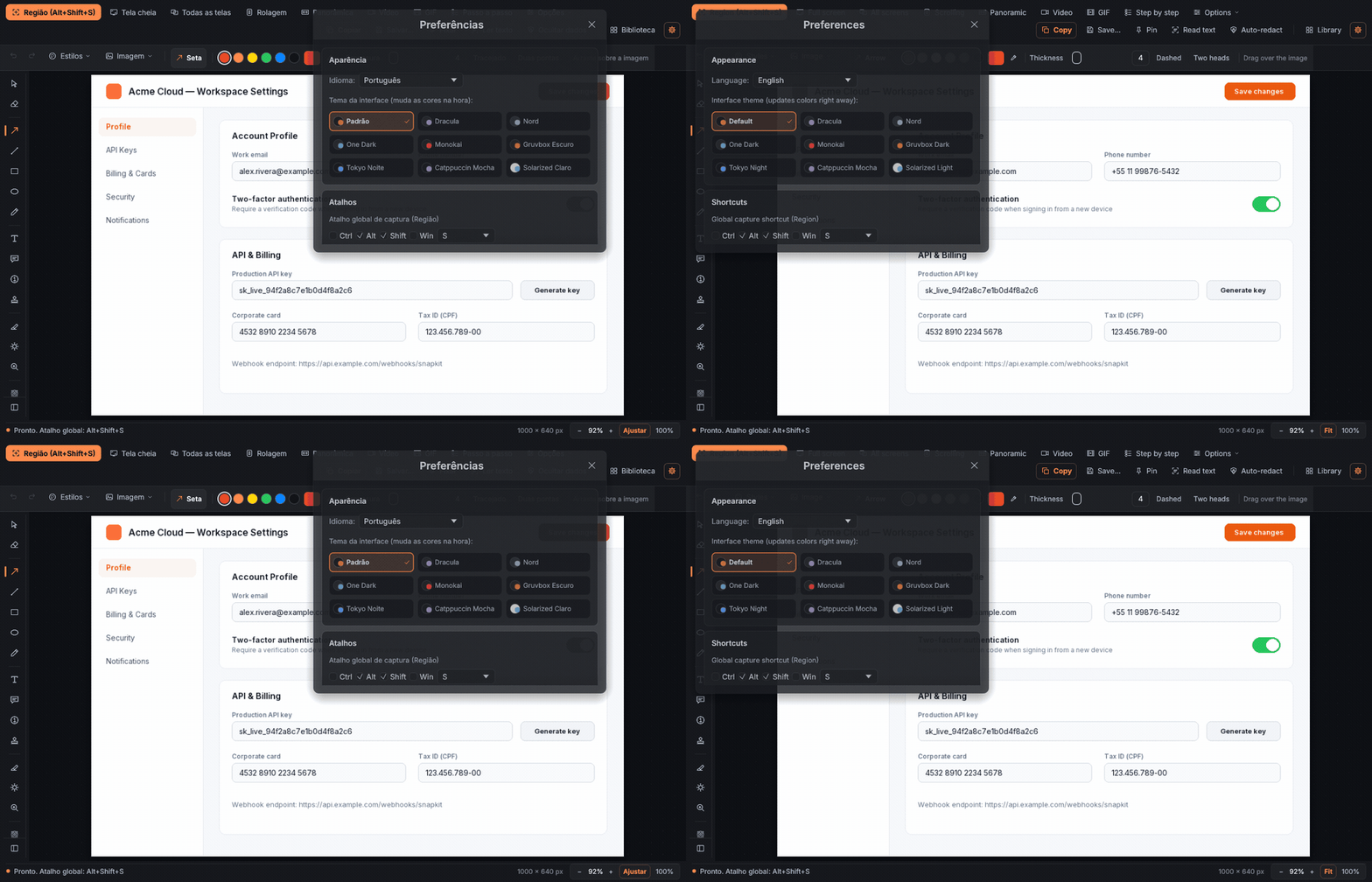
Under Language, select English or Português. The interface and the tray menu switch immediately.
The first time you run SnapKit, it uses the language of Windows: Portuguese if Windows is in Portuguese, English otherwise.
Change the color theme
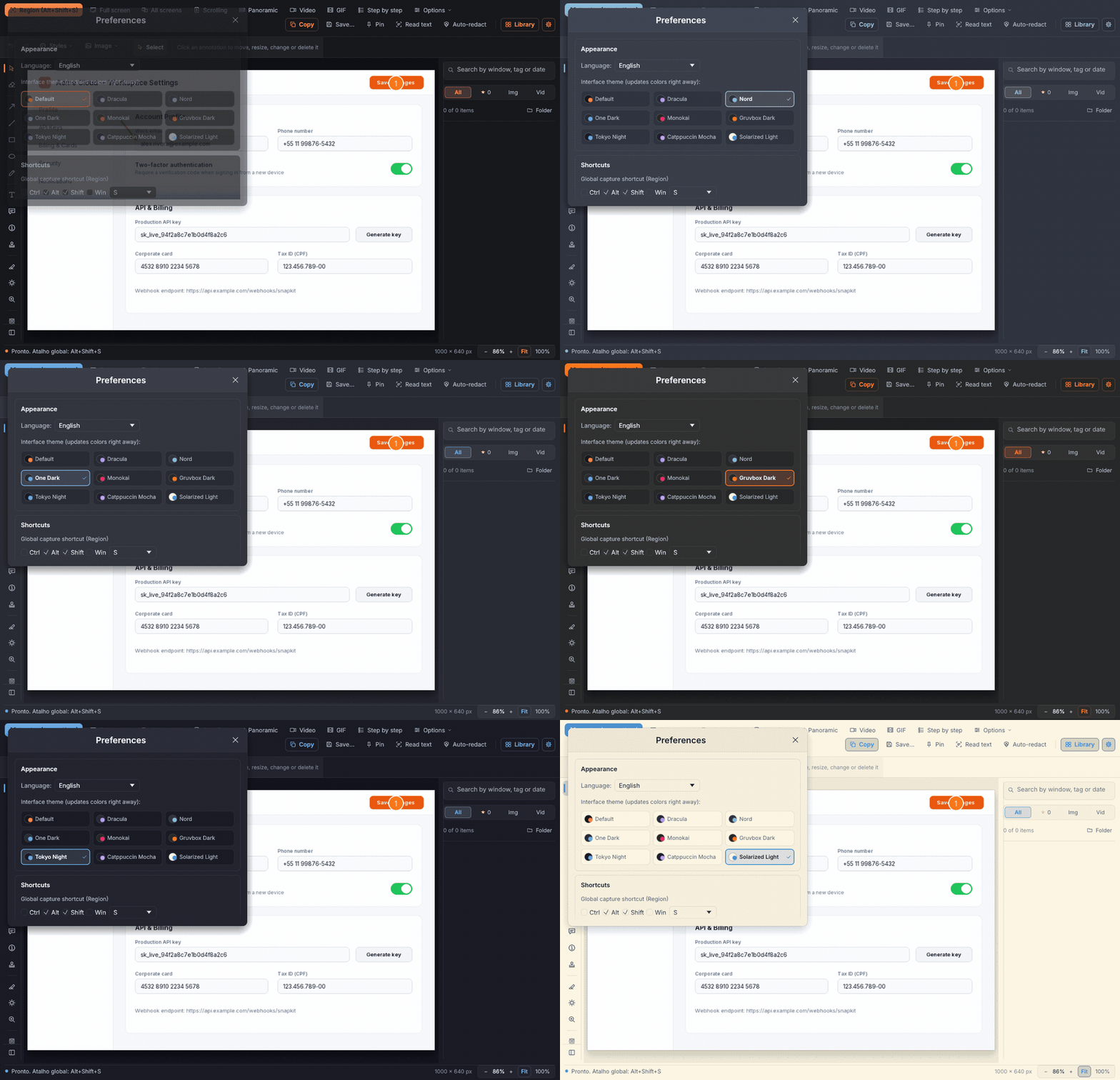
Under Interface theme, select a theme. The colors of the window, the editor and the capture frame change immediately. See the list of themes.
Choose what happens after a region capture
After choosing the region, annotate right there (Enter copies) is on by default:
- On: the capture stays on the screen with a small toolbar, and Enter copies it. See quick annotation.
- Off: every region capture opens in the full editor.
Keep SnapKit in the tray
Closing the window keeps SnapKit in the tray is on by default. When it's on, selecting the window's X only hides the window, and the capture shortcut keeps working. To quit SnapKit, right-click the tray icon and select Quit.
Turn it off if you want the X to quit SnapKit.
Start SnapKit with Windows
Select Start with Windows (in the tray). SnapKit starts hidden in the tray when you sign in, so the shortcut is always ready.