
Find, reopen and delete captures in the library
SnapKit keeps every capture automatically, so you never lose a screenshot you copied and forgot to save. The library lives in your Pictures\SnapKit folder, as ordinary PNG files.
SnapKit keeps every capture automatically, so you never lose a screenshot you copied and forgot to save. The library lives in your Pictures\SnapKit folder, as ordinary PNG files.
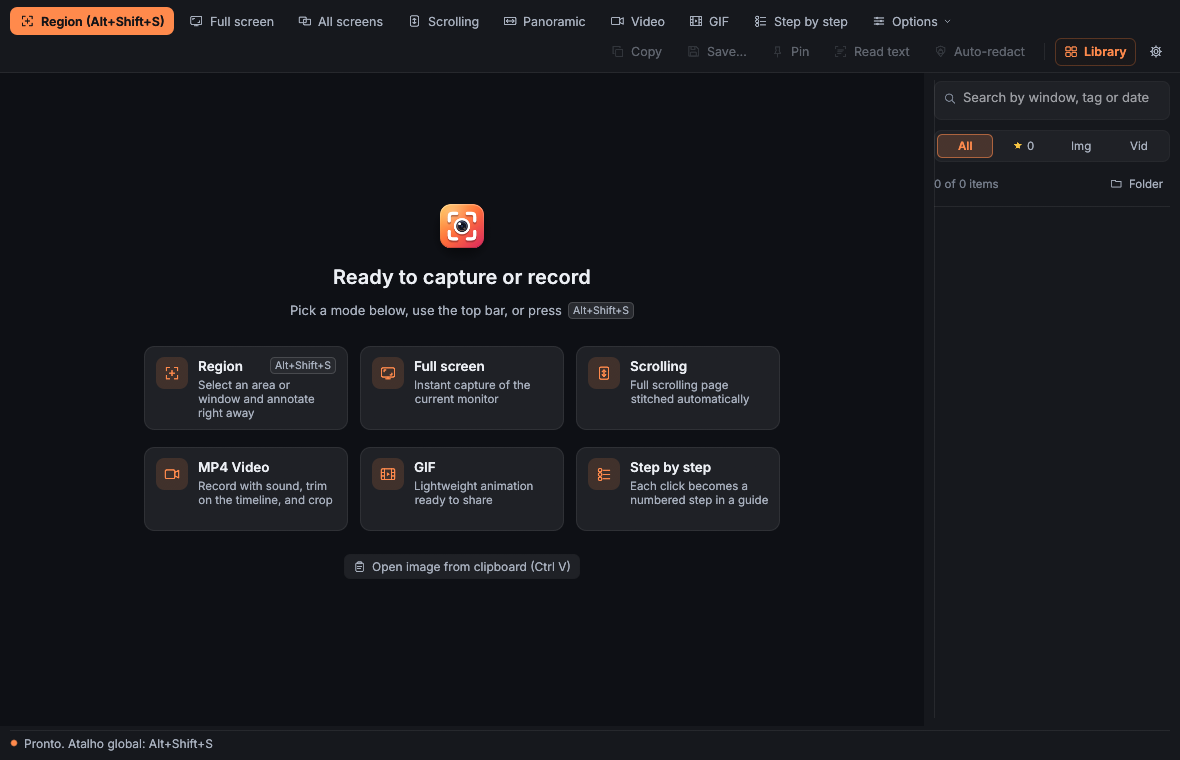
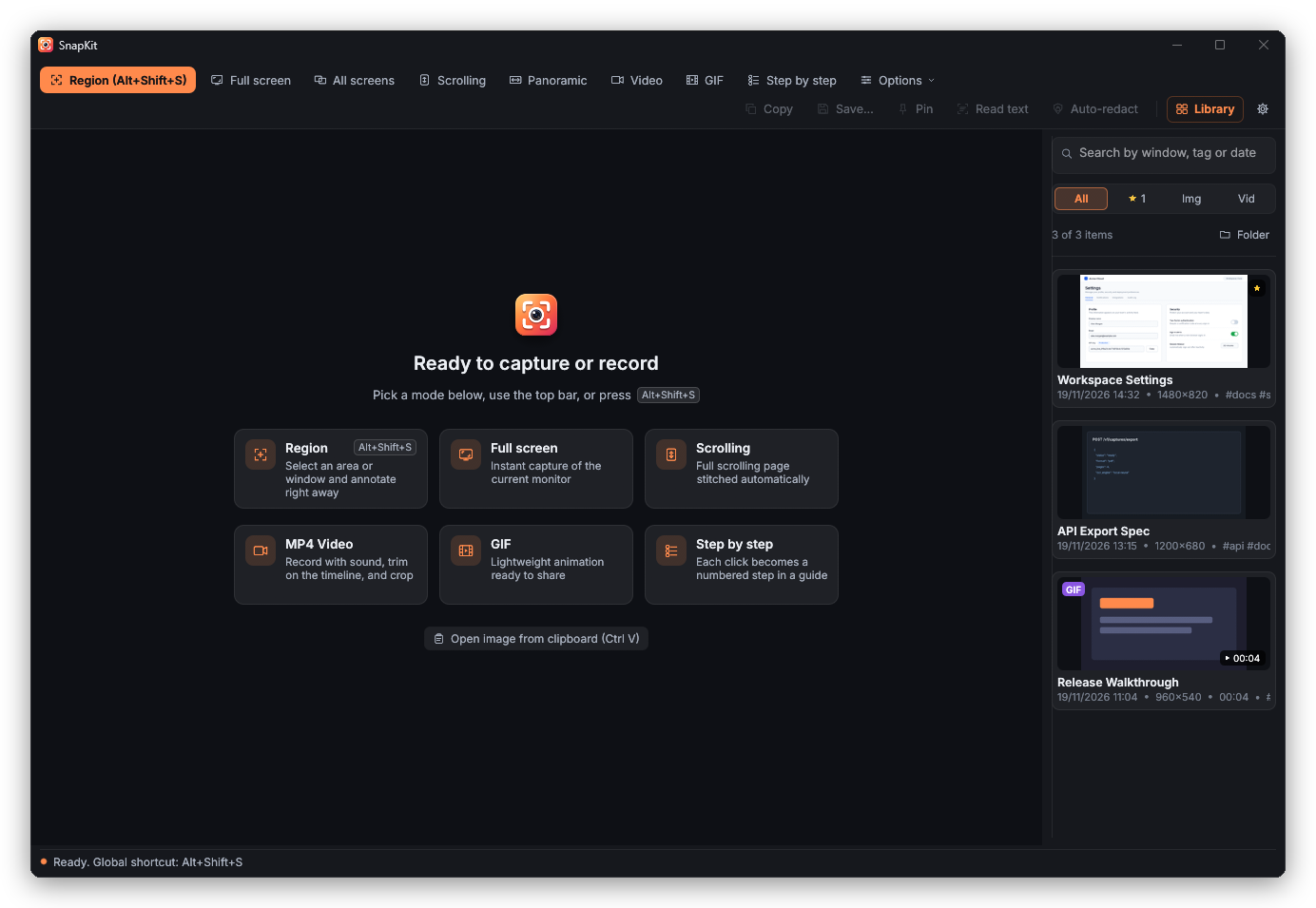
Open the library
Select Library in the top bar. The library panel lists your captures, newest first, with a thumbnail, the title of the window that was in front when you captured it, the date and the size in pixels.
Find a capture
Type in Search by window or date. The list filters as you type.
- Search by window title:
excel,Firefox,Visual Studio Code. - Search by date, in day/month/year format:
10/11,2026,10/11/2026.
The search ignores capitalization. The line under the search box shows how many captures match.
Reopen a capture
Select a capture in the list. It opens in the editor, where you can annotate it further, copy it or save it as a file. Your changes are saved back to the library automatically.
Annotations made in an earlier session are already part of the reopened image. You can add new annotations, but you can't select the old ones. See How annotations work.
Open the file in File Explorer
- To open the whole library folder, select Open folder above the list.
- To show one capture's file, right-click it and select Show in folder.
Delete captures
Deleted captures go to the Windows Recycle Bin, so you can restore them from there.
- Right-click a capture and select Move to Recycle Bin.
- Or select a capture, keep the pointer over the library and press Delete. The next capture is selected, so you can press Delete again to remove several in a row.
Related
Copy, save and reuse captures
When a capture opens in the editor, SnapKit has already copied it to the clipboard and kept it in the library. In quick annotation, that happens when you copy, save or continue...
Troubleshoot common problems
The installer isn't digitally signed yet. Select More info, and then select Run anyway. If you prefer, build SnapKit from source.