
Point things out with arrows, shapes and text
These tools are in the Draw and Explain groups of the editor's tool column. When you select a tool, the options bar above the image shows its settings and a one-line hint on...
These tools are in the Draw and Explain groups of the editor's tool column. When you select a tool, the options bar above the image shows its settings and a one-line hint on how to use it.
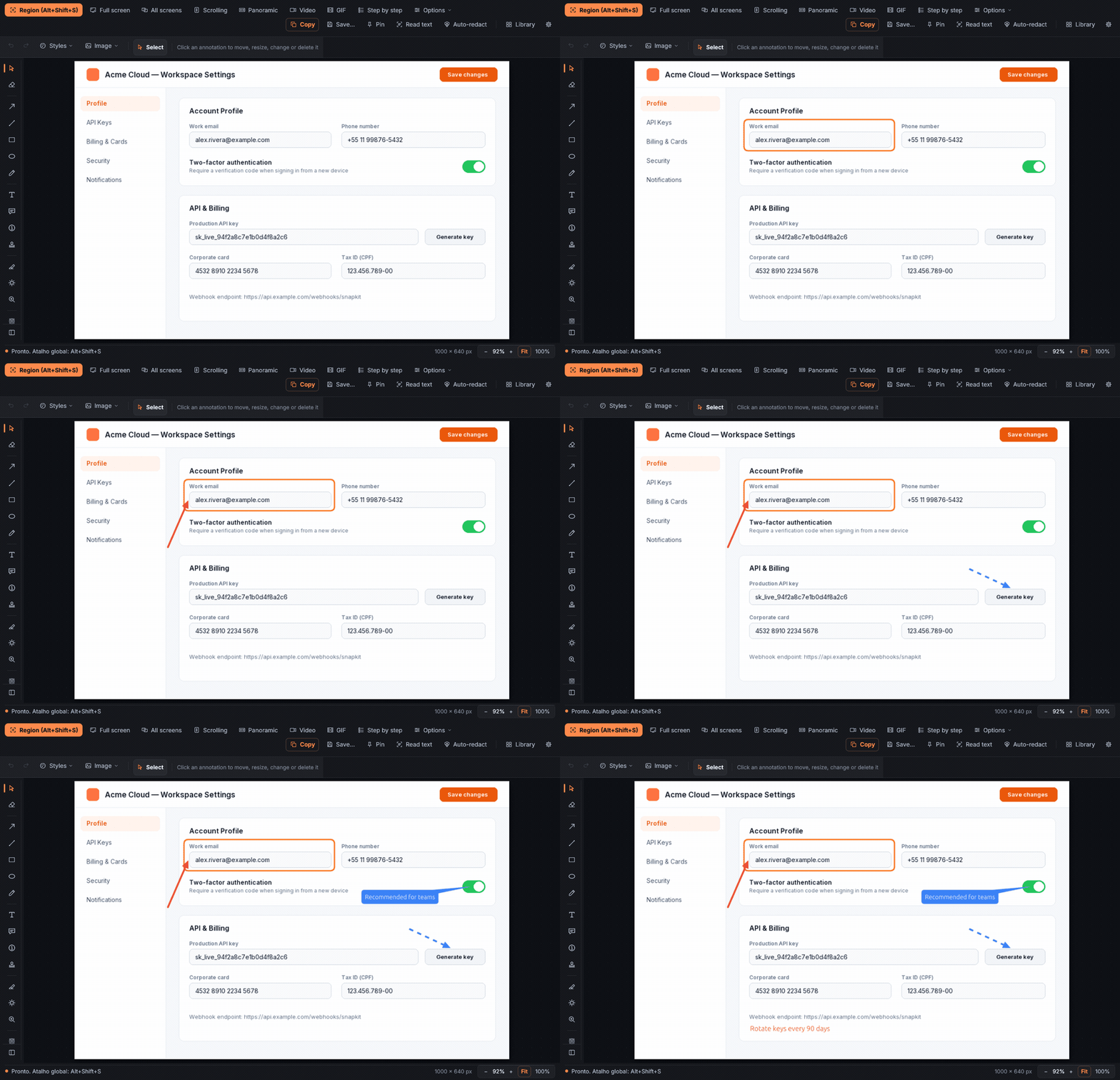
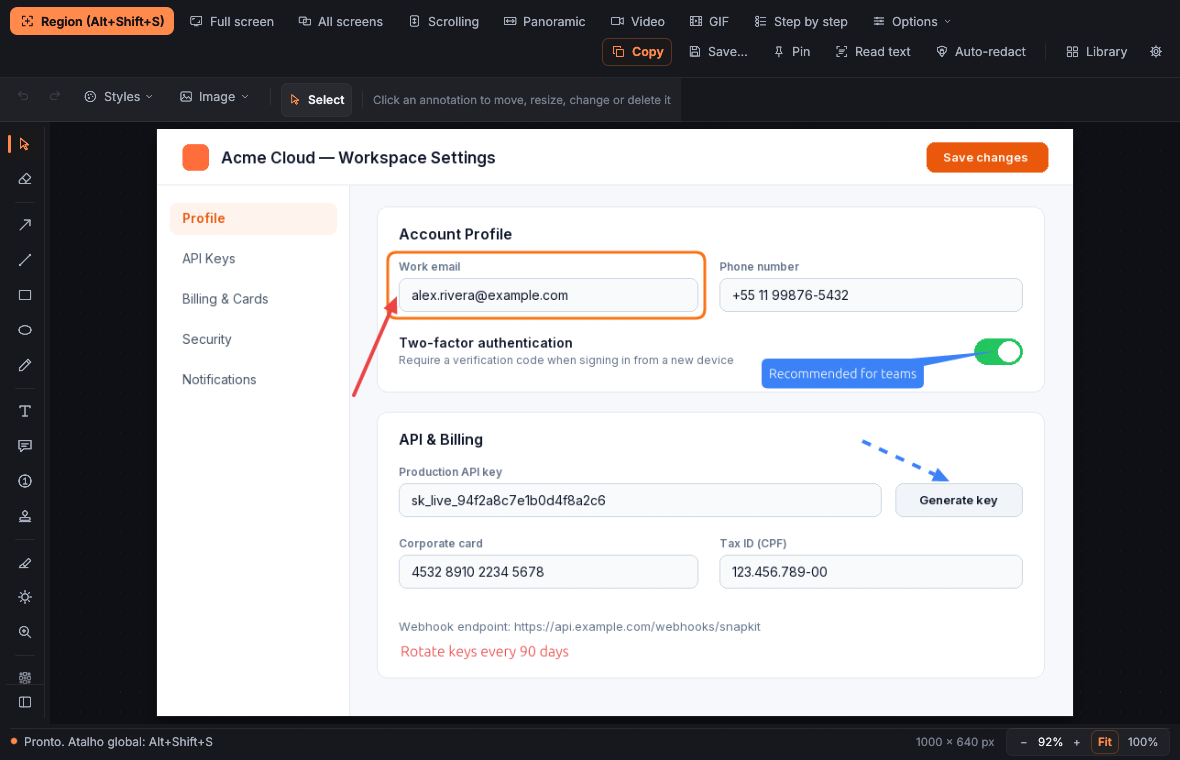
Choose a color and a width
Before you draw, use the options bar:
- Select one of the color swatches, or select the color button next to them for any other color.
- Drag the Thickness slider to change the line width. For text, callouts, stamps and step markers, the same slider is labeled Size.
Changing the color or width while an annotation is selected changes that annotation.
Draw an arrow
- Select Arrow.
- Drag from the start of the arrow to the point it should point at.
Options: Dashed for a dashed line, Two heads for a double-headed arrow.
Draw a line, rectangle or ellipse
- Select Line, Rectangle or Ellipse.
- Drag from one corner to the opposite corner (or from one end of the line to the other).
Options: Dashed, and Fill for a solid rectangle or ellipse.
Draw freehand
Select Pen and drag. Use it to circle something quickly or to underline by hand.
Add text
- Select Text.
- Select where the text starts and type.
- Press Shift+Enter to start a new line, Enter to confirm, or Esc to cancel.
Select Background in the options bar to put a contrasting box behind the text, which keeps it readable on busy screenshots.
Add a callout
A callout is a speech balloon with a tail that points at something.
- Select Callout.
- Drag from the point you want to explain to where the balloon should go.
- Type the text and press Enter.
Under Style, choose Rounded, Square or Outline.
Add a stamp
Stamps are ready-made symbols such as a check mark, a cross or a warning sign.
- Select Stamp.
- Under Symbol, choose one of the 16 symbols.
- Select where it goes on the image. Each click places one stamp.
Use Size to make the stamp larger or smaller.
Related
Annotate right on the screen with quick annotation
Quick annotation keeps a region capture exactly where it was on the screen, with a compact toolbar next to it. You add arrows, labels or blur and press Enter. The editor never...
Number the steps of a procedure
Numbered markers show the order of actions on a single screenshot, for example "1: open the menu, 2: select Settings, 3: turn on the option". To capture a whole task as a...