
Annotate right on the screen with quick annotation
Quick annotation keeps a region capture exactly where it was on the screen, with a compact toolbar next to it. You add arrows, labels or blur and press Enter. The editor never...
Quick annotation keeps a region capture exactly where it was on the screen, with a compact toolbar next to it. You add arrows, labels or blur and press Enter. The editor never opens, so you go from "I need a screenshot" to "pasted" in a few seconds.
Quick annotation is on by default. If region captures open in the editor instead, turn on After choosing the region, annotate right there (Enter copies) in Preferences. It isn't used when a capture delay is set.
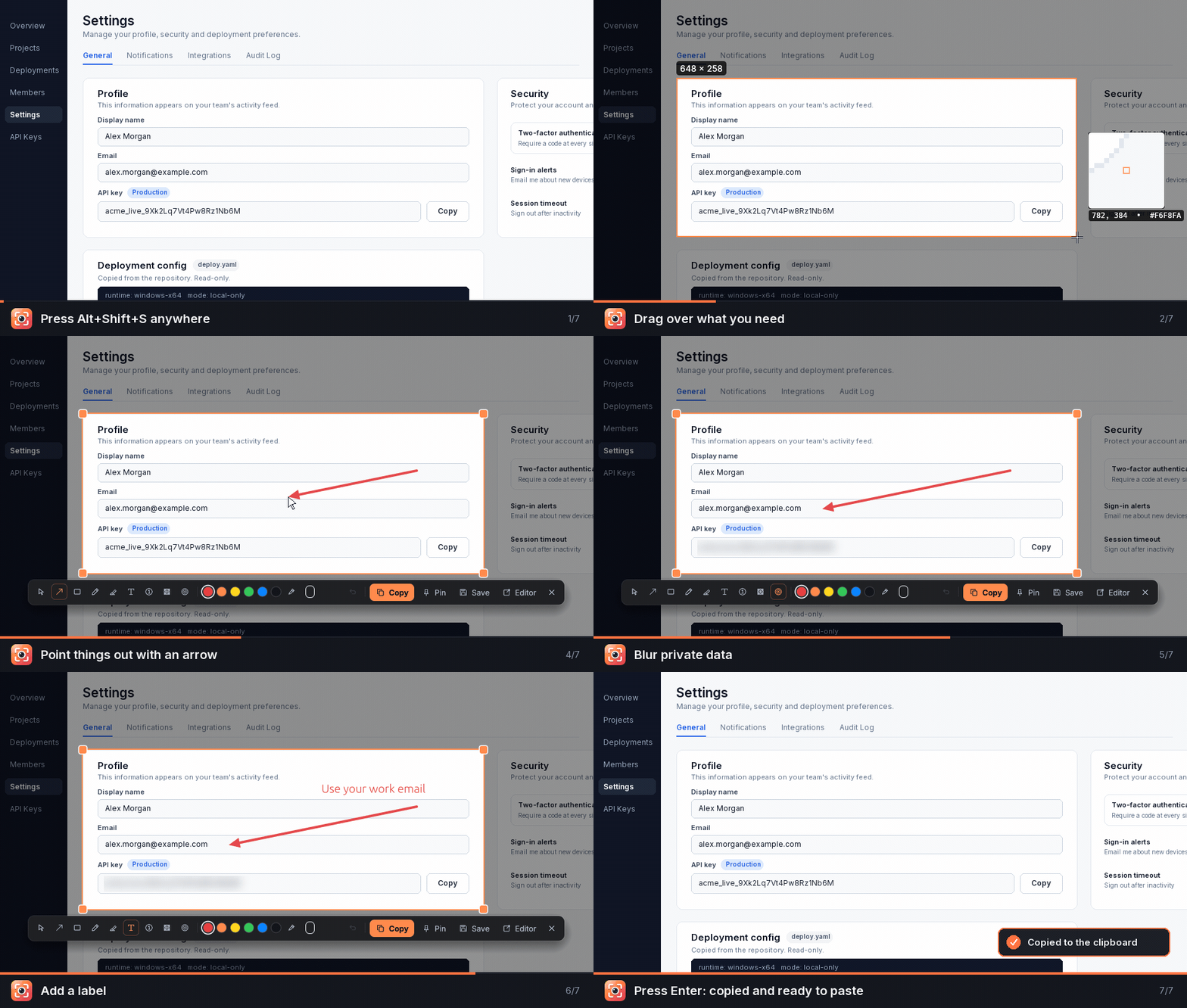
Annotate a region capture
-
Press Alt+Shift+S and drag over an area.
The capture stays in place, framed, with a toolbar below it (or above it, when there's no room below).
-
In the toolbar, select a tool: Select, Arrow, Rectangle, Pen, Highlighter, Text, Step, Pixelate or Blur.
-
Pick a color and a width in the toolbar, and draw on the capture.
-
Finish with one of these actions:
Action Button Shortcut Copy the image and close Copy Enter or Ctrl+C Save the image to a file Save Ctrl+S Continue in the full editor Editor Ctrl+E Cancel the capture ✕ Esc
Every option except cancel also keeps the capture in the library. Copy hides SnapKit again if it was hidden before you started.
While you're typing a text, Enter confirms the text and Esc cancels it. Press Enter again to copy the capture.
Move or resize the capture
You can still change the captured area after you start annotating:
- Move: drag the border of the capture.
- Resize: drag a corner.
While you drag, the area shows the live screen with your annotations on top. When you release the mouse button, SnapKit takes a new shot of the new area and keeps your annotations editable. Moving takes the annotations along; resizing leaves them on the same spot of the screen.
Need more tools?
Press Ctrl+E to continue in the full editor with everything you've drawn. There you have every tool, styles, zoom and the Image menu.
Related
Capture menus and tooltips with a delay
Menus, drop-down lists and tooltips close as soon as you press a key or click somewhere else. A delay gives you time to open them before SnapKit takes the shot.
Point things out with arrows, shapes and text
These tools are in the Draw and Explain groups of the editor's tool column. When you select a tool, the options bar above the image shows its settings and a one-line hint on...