
Hide passwords and personal data
Screenshots often show more than you meant to share: email addresses, customer names, tokens, internal URLs. Hide them before you copy or save the image.
Screenshots often show more than you meant to share: email addresses, customer names, tokens, internal URLs. Hide them before you copy or save the image.
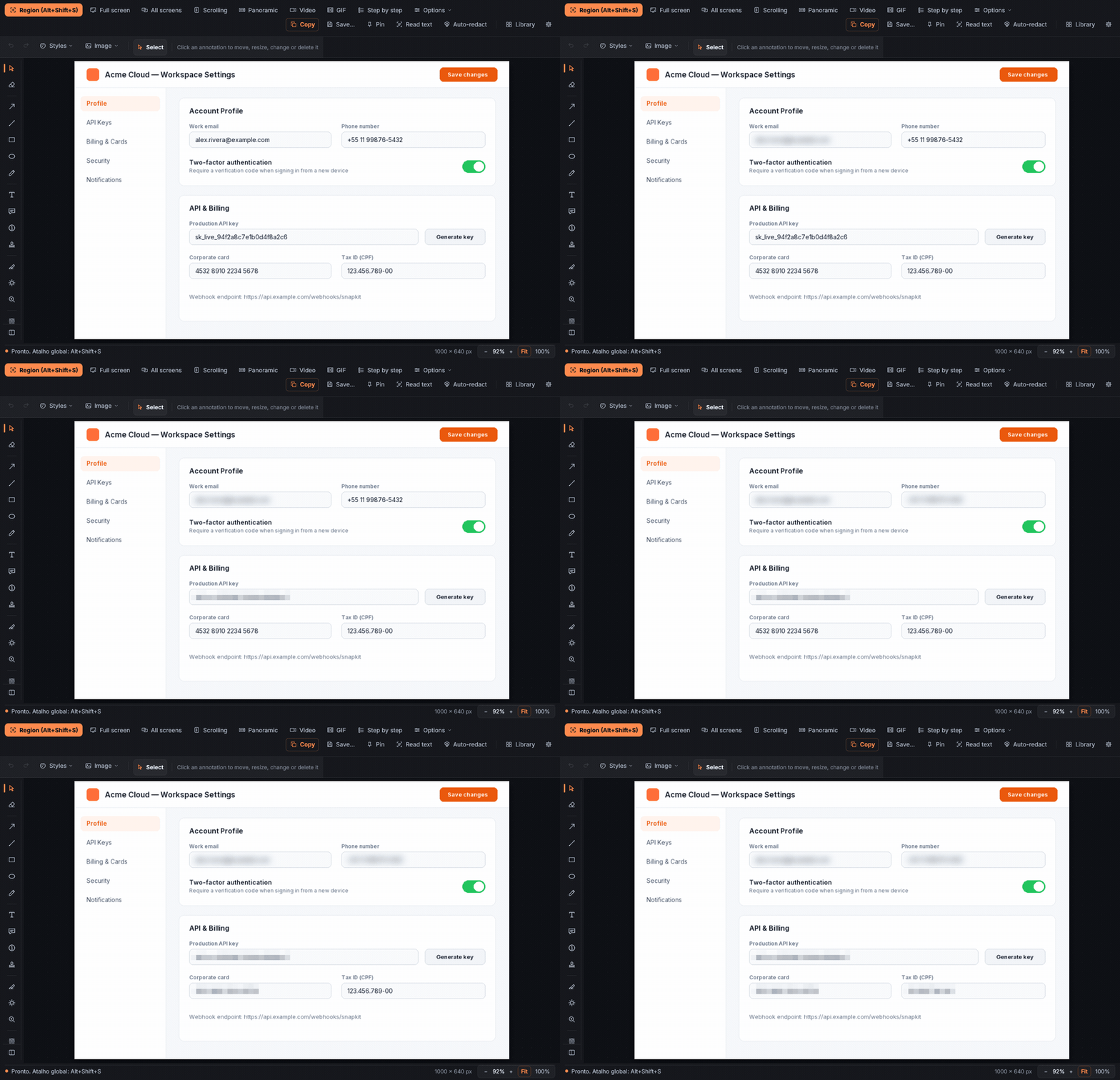
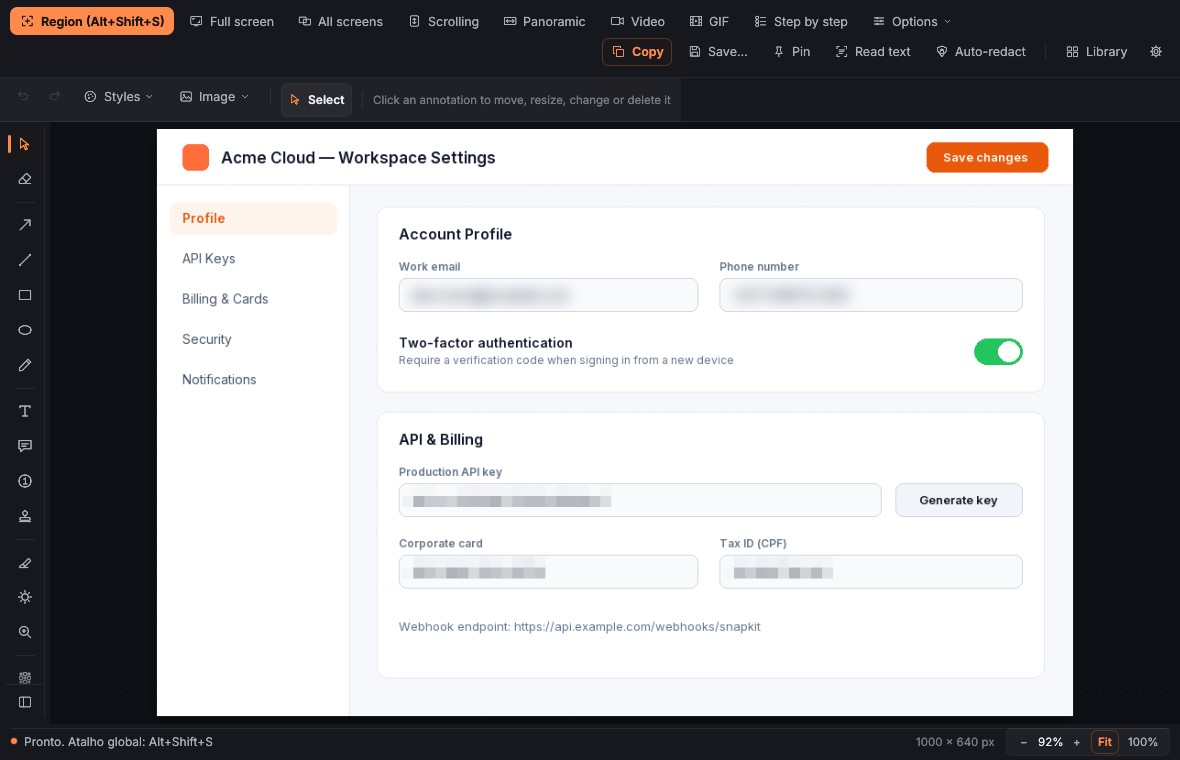
- In the editor or the quick annotation toolbar, select Pixelate or Blur.
- Drag over each piece of information you want to hide.
| Tool | Result | Best for |
|---|---|---|
| Pixelate | Large, clearly visible blocks | Making it obvious that something was removed |
| Blur | A soft blur, strong enough to make screen text unreadable | A cleaner look in polished documentation |
Both tools change the pixels of the final image. Once you copy or save it, the hidden text can't be recovered from the file.
Remove a strip with private content
If a whole row of a table or a block of a page shouldn't appear at all, use Cut out in the Image group: drag down over the rows to remove a horizontal strip, or sideways to remove a vertical one. The two remaining parts are joined.
Related
Number the steps of a procedure
Numbered markers show the order of actions on a single screenshot, for example "1: open the menu, 2: select Settings, 3: turn on the option". To capture a whole task as a...
Draw attention with highlights, spotlight and magnifier
The tools in the Highlight group help readers find the important part of a busy screenshot.