Reference
Editor tools and options
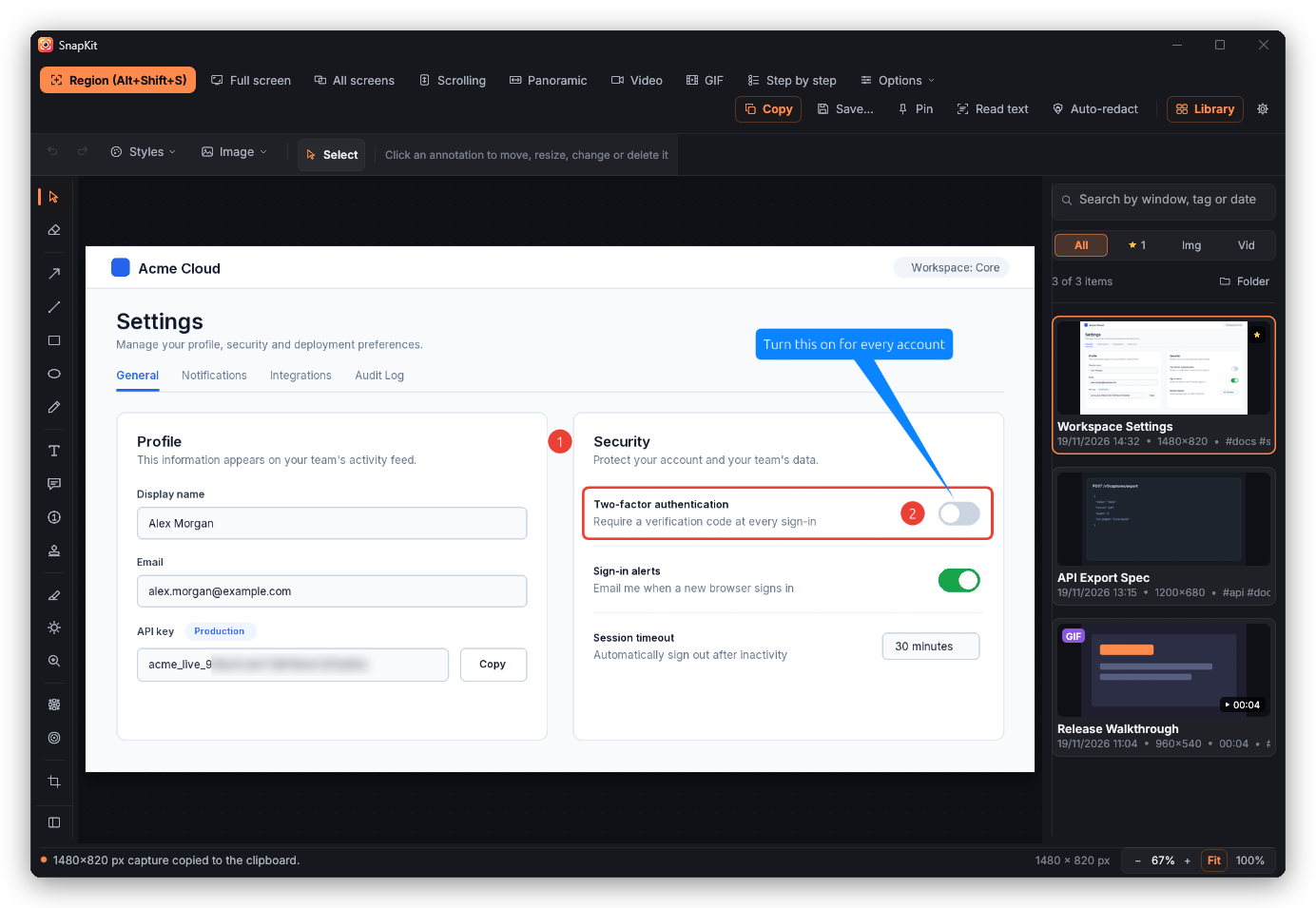
The editor has three parts:
The editor has three parts:
GIF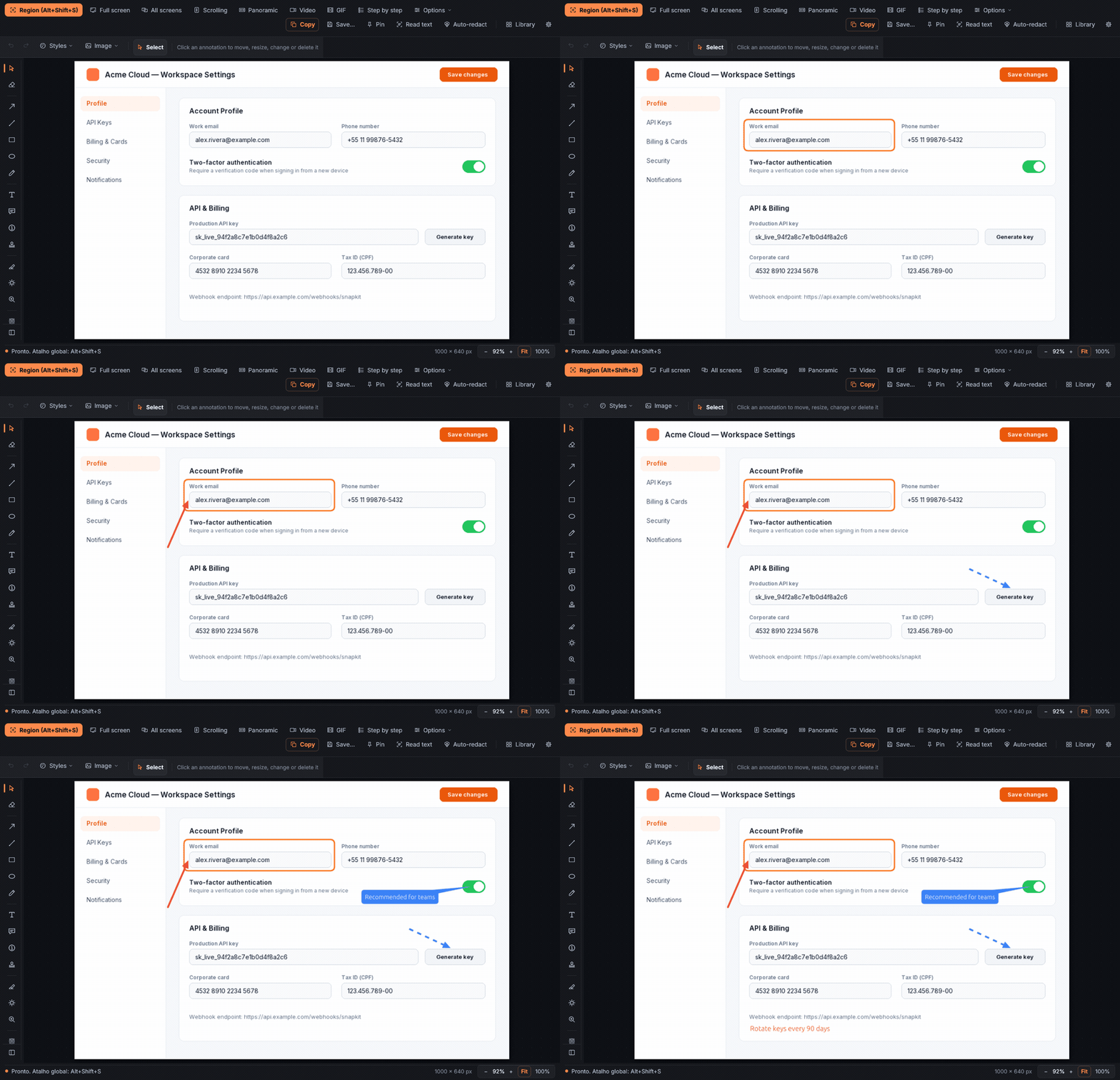
- Tool column (left): every tool, in groups.
- Options bar (above the image): Undo, Redo, the Styles and Image menus, the name of the current tool or selected annotation(s), and the controls that apply to them. With no annotation selected, it shows a one-line hint on how to use the tool.
- Footer (below the image): image size and zoom controls.
In the top bar above the editor, you can copy the capture to the clipboard, Save it as PNG, JPEG, WebP, BMP or PDF (Ctrl+S), 📌 Pin it as an always-on-top floating window, or run Read text / 🔒 Auto-redact.
Tools
| Group | Tool | How to use it | Options |
|---|---|---|---|
| Edit | Select | Click an annotation (or pasted image layer) to move, resize, rotate, reorder, change or delete it. Ctrl+Click, Shift+Click, Ctrl+A, or drag on empty canvas to select multiple annotations, with smart alignment guides while dragging. | Single selection: the annotation's options, rotation angle / 0° reset, Z-order (⬆ Bring forward, ⬇ Send backward, ⤒ Bring to front, ⤓ Send to back), ⧉ Duplicate and Delete. Multi-selection (2+): Color, Align (left, horizontal center, right, top, vertical middle, bottom), Distribute (3+, horizontally / vertically), ⧉ Duplicate and Delete |
| Eraser | Drag over an area to restore the original capture there. | Thickness | |
| Draw | Arrow | Drag from the start to the target. | Color, Thickness, Dashed, Two heads |
| Line | Drag from one end to the other. | Color, Thickness, Dashed | |
| Rectangle | Drag from corner to corner. | Color, Thickness, Fill, Dashed, Corners (0–64 px) | |
| Ellipse | Drag from corner to corner of its bounding box. | Color, Thickness, Fill, Dashed | |
| Pen | Drag to draw freehand. | Color, Thickness | |
| Explain | Text | Click where the text starts and type. | Color, Size, Background |
| Callout | Drag from the point to explain to where the balloon goes, then type. | Color, Size, Style | |
| Step | Each click places the next number or letter. | Color, Size, Shape, label type; No. when selected | |
| Stamp | Each click places the chosen symbol. | Color, Size, Symbol | |
| Highlight | Highlighter | Drag over text to mark it with translucent yellow. | Color when selected |
| Spotlight | Drag over the area that should stay bright. | None | |
| Magnifier | Drag over a detail; move and resize the enlarged copy. | Zoom | |
| Hide | Pixelate | Drag over what should become unreadable. | None |
| Blur | Drag over what should become unreadable. | None | |
| Image | Crop | Drag over the part of the image to keep. | None |
| Cut out | Drag down to remove a horizontal strip, or sideways to remove a vertical one. | None | |
| Grab text | Drag over text to recognize and copy it. | None |
You can also paste any image from the clipboard (Ctrl+V, or Image > Paste image as layer) to place it as a movable, resizable and rotatable layer on the canvas.
The quick annotation toolbar has a compact subset of these tools (Select, Arrow, Rectangle, Pen, Highlighter, Text, Step, Pixelate and Blur), plus color swatches, the 💧 Eyedropper (I), 🔒 Auto-redact, and 📌 Pin (P).
Option values
| Option | Values |
|---|---|
| Thickness / Size | 1 to 24 |
| Corners (Rectangle) | 0 to 64 pixels |
| Zoom (Magnifier) | 1 to 24, which enlarges the copy from about 1.6× to 4.5× |
| Style (Callout) | Rounded, Square, Outline |
| Shape (Step) | Circle, Square, Diamond, Hexagon, Pin |
| Label type (Step) | 1 2 3, A B C, a b c |
| No. (selected Step) | 1 to 999 |
| Symbol (Stamp) | Check, Wrong, Warning, Info, Question, Star, Plus, Minus, Right arrow, Left arrow, Up arrow, Down arrow, Heart, Flag, Pushpin, Cursor |
| Color | Palette swatches, Other color for any color, or 💧 Eyedropper (I) to sample a pixel on the canvas |
| Rotation | Any angle via the top rotation handle; hold Shift to snap to 45° increments, or click 0° to reset |
Styles menu
| Item | Action |
|---|---|
| A style name | Switch to that style's tool and options |
| × next to a style | Delete the style |
| Name (optional) and Save | Save the current tool and options as a new style |
Image menu
| Item | Action |
|---|---|
| 📋 Paste image as layer (Ctrl V) | Paste the image on the clipboard onto the canvas as an editable, movable, resizable and rotatable layer |
| 🔒 Auto-redact sensitive data (OCR) | Detect emails, API keys and tokens, passwords, credit cards (Luhn), CPF/CNPJ, phone numbers and IP addresses with local OCR, placing editable Blur or Pixelate boxes in one undo step |
| Rotate left / Rotate right | Rotate the whole image 90 degrees |
| Flip horizontally / Flip vertically | Mirror the whole image |
| Size (width × height, in pixels), Keep proportions, Apply size | Resize the whole image, up to 20,000 pixels per side |
| Frame: width in pixels and Border in the current color | Add a solid border |
| Shadow | Add a white margin with a soft drop shadow |
| ✨ Background mockup: gradient preset, Padding, Corners, Shadow, ✨ Apply background | Frame the capture inside a gradient mockup backdrop with rounded corners and a soft drop shadow |
Footer
| Control | Action |
|---|---|
| Image size | Width × height of the image, in pixels |
| - / + | Zoom out (Ctrl+Minus) / zoom in (Ctrl+Plus), with the current zoom percentage between them |
| Fit | Fit the whole image in the window (Ctrl+0) |
| 100% | Actual size (Ctrl+1) |